

Home / BMW CarPlay Guides / CarPlay not connecting

BMW CarPlay Not Connecting? How to Fix It
Most of the time, CarPlay that won't connect is a phone setting or an old pairing, not a fault with the car. Park up and work through these in order.
Check your iPhone first
- Bluetooth and WiFi: both need to be on, because BMW CarPlay is wireless.
- Auto Join: in Settings → Wi-Fi, tap your car's network and check Auto-Join is on.
- Siri: Apple asks you to make sure it's on.
- Restrictions: in Settings → Screen Time → Content & Privacy Restrictions, check CarPlay is allowed.
- Locked phone: in Settings → General → CarPlay, tap your car and allow CarPlay while locked.
- VPN: turn it off while connecting.
- iOS: update to the latest version.
Do a clean pairing
- On the iPhone, go to Settings → General → CarPlay, tap your car and choose Forget This Car.
- Go to Settings → Bluetooth, tap the i next to your BMW and choose Forget This Device.
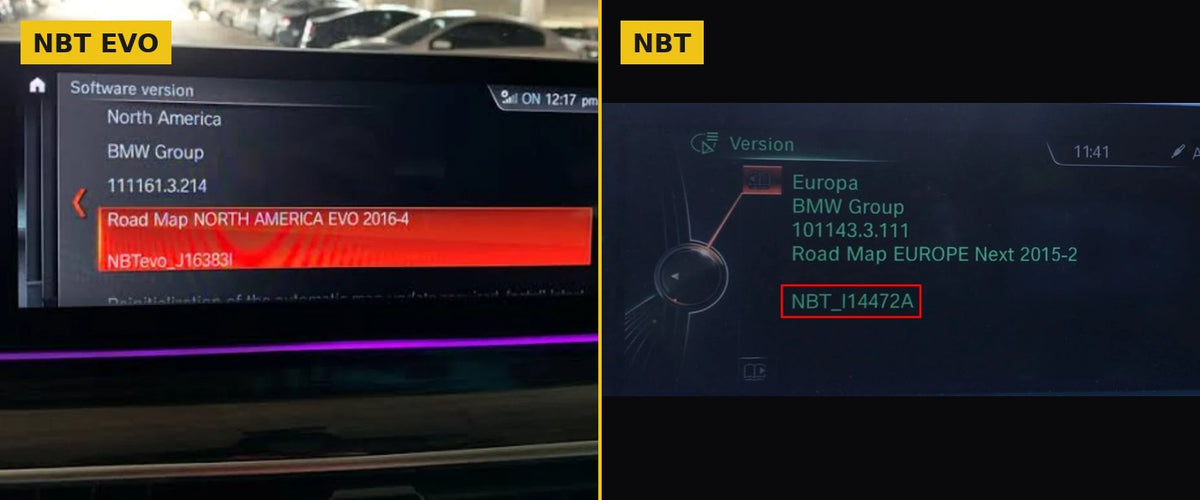
- On the iDrive, delete your iPhone from Mobile Devices. On NBT EVO, you'll usually find it under Manage Mobile Devices.
- Restart your iPhone.
- Add your phone as a new device on the iDrive, and choose Apple CarPlay when it asks.
On iDrive 7, the route is COM → Mobile Devices → New Device → Phone Calls and Audio, then select Use Apple CarPlay.
Restart the iDrive
With the ignition on, hold the volume knob for 20 to 30 seconds until the screen goes black and restarts. This doesn't erase your paired devices or settings. If that doesn't help, hold it for around 70 seconds for a deeper reboot. Here's more on resetting it.
If it still won't connect
- Is CarPlay actually on your car? If it has never worked, it may not be active. Here's how to check.
- WiFi antenna: if it's missing or poorly connected, CarPlay won't connect or will drop out. Check here.
- Recent dealer work: an update can reset coding, so tell whoever activated it.
- Second iPhone: if another phone connects fine, the car's good and the problem's with your phone.

Leave a comment
This site is protected by hCaptcha and the hCaptcha Privacy Policy and Terms of Service apply.