
How to Check If Your BMW Has NBT EVO
The version screen on your iDrive tells you in under a minute. Your head unit decides what CarPlay options you have, so this is the first thing to check.
Check the version screen
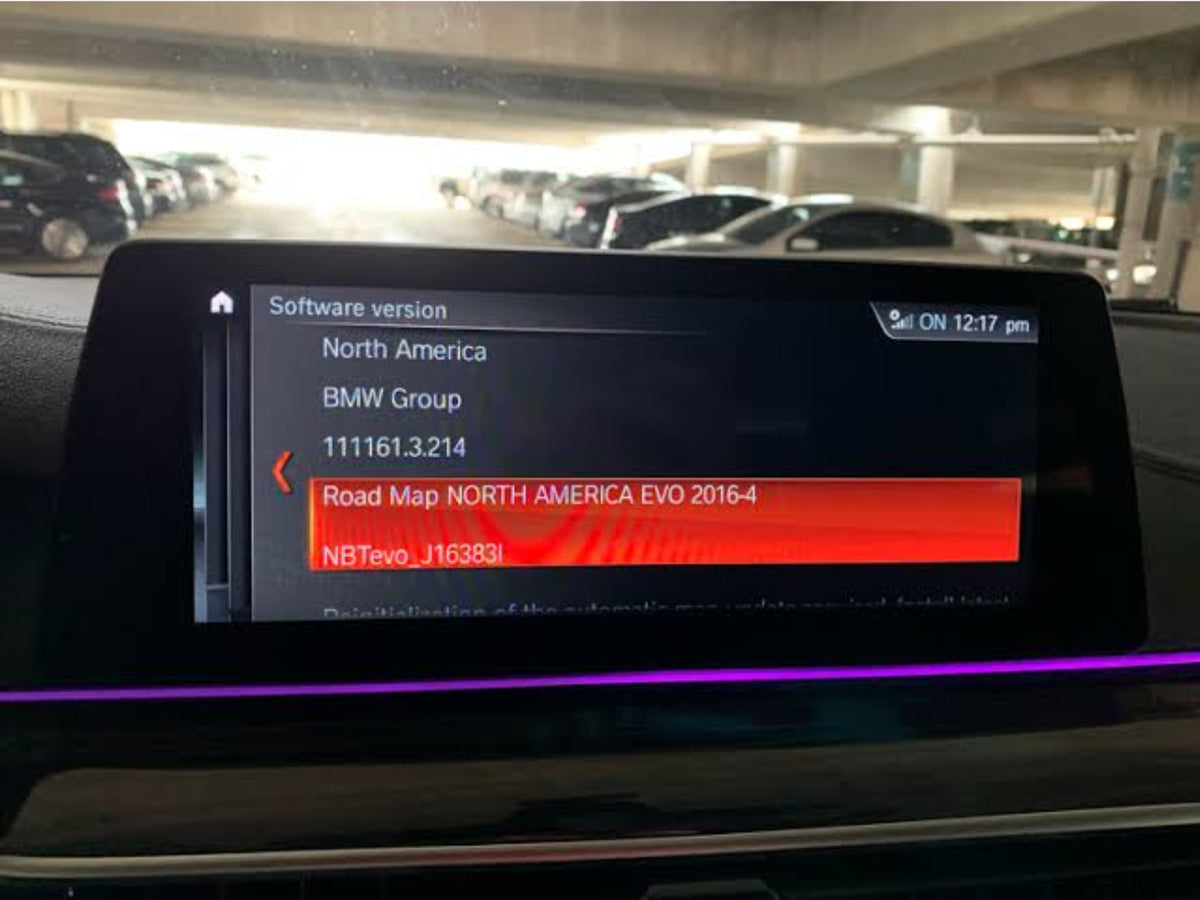
On the iDrive go to Navigation → Options → Settings → Position & Version History → Version. If you see a code starting with NBTEvo_, you have NBT EVO.
What your code means
| Code | What you have |
|---|---|
| NBTEvo_A, C, D, E or F | NBT EVO on iDrive 4 |
| NBTEvo_H onwards | NBT EVO on iDrive 5 or 6 |
| NBT_ | Original NBT |
| WAY_ | EntryNav2 |
| Anything else | Likely an older head unit, so send us a photo and we'll tell you |
Why the menu can fool you
A lot of people go by how the screen looks, but NBT EVO on iDrive 4 uses the older style menu, so it looks just like original NBT. Plenty of owners think they have NBT when they actually have NBT EVO, and that changes what's possible.

Live tiles on the home screen point to iDrive 6. A newer style menu with no tiles usually means iDrive 5. As a rough guide on an F30, NBT EVO started around mid 2015, with iDrive 5 and 6 from around mid 2016, but dates vary by country and build.
What to do next
- iDrive 5 or 6: you can likely activate CarPlay. See CarPlay activation for NBT EVO.
- iDrive 4: the iDrive 4 to iDrive 6 upgrade gets you the newer interface and fullscreen CarPlay.
- Original NBT: see why NBT cars can't get CarPlay in software.
For every other iDrive system, see our guide on how to check your BMW iDrive version.
This guide is part of our main guide on adding Apple CarPlay to your BMW.

Leave a comment
This site is protected by hCaptcha and the hCaptcha Privacy Policy and Terms of Service apply.