

Home / BMW CarPlay Guides / Coding checklist

BMW Remote Coding Checklist: Get Your Car Ready
Most remote sessions that run late do so because of the setup, not the car. Ten minutes of getting ready can save you a rebooking. Your exact needs are listed on the product, so treat this as a general list.
The gear
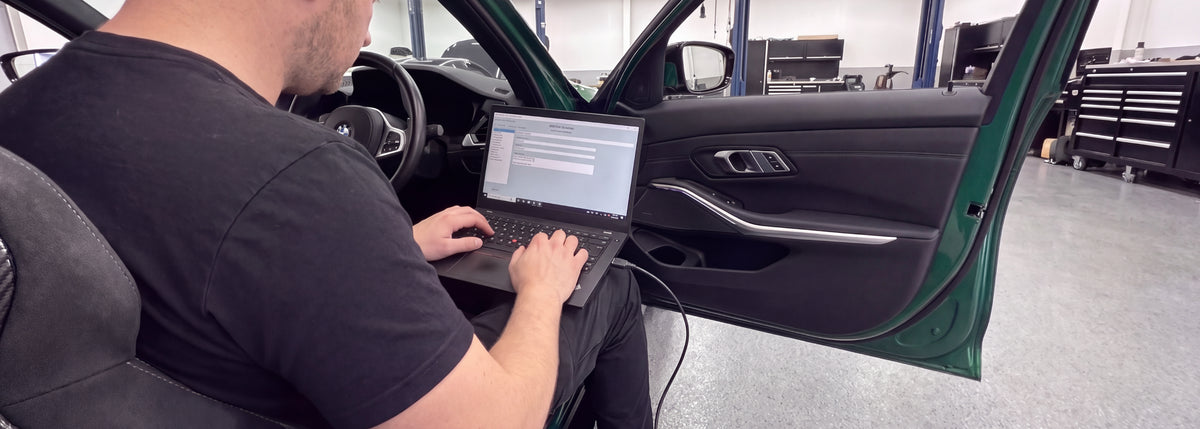
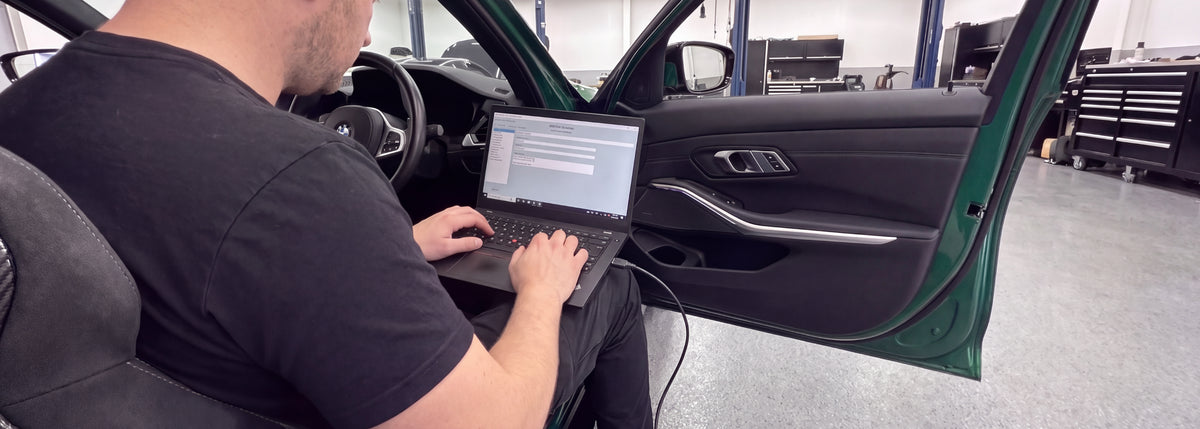
- An ENET cable, which connects the car to your laptop
- A battery charger, if your job involves flashing
- A WiFi antenna on the head unit, for CarPlay or Android Auto jobs
- A USB flash drive, if your listing asks for one
The place
- Park where your internet reaches the car, or use a strong phone hotspot.
- Pick somewhere you won't have to move the car.
- Allow more time than the listing says, in case something takes longer.
The laptop
- Charge it, and keep it plugged in if you can.
- Install TeamViewer if your listing asks for it.
- Turn off sleep mode and automatic updates for the session.
- Free up storage. A firmware update asks for about 20GB.
- On a Mac? Check this first.
During the session
- Stay near the car and keep your phone on.
- Follow the technician's instructions about the ignition.
- Don't unplug the cable, or close the laptop lid, unless you're told it's safe to.
- Have your phone with you at the end, so you can test CarPlay or Android Auto.

Leave a comment
This site is protected by hCaptcha and the hCaptcha Privacy Policy and Terms of Service apply.